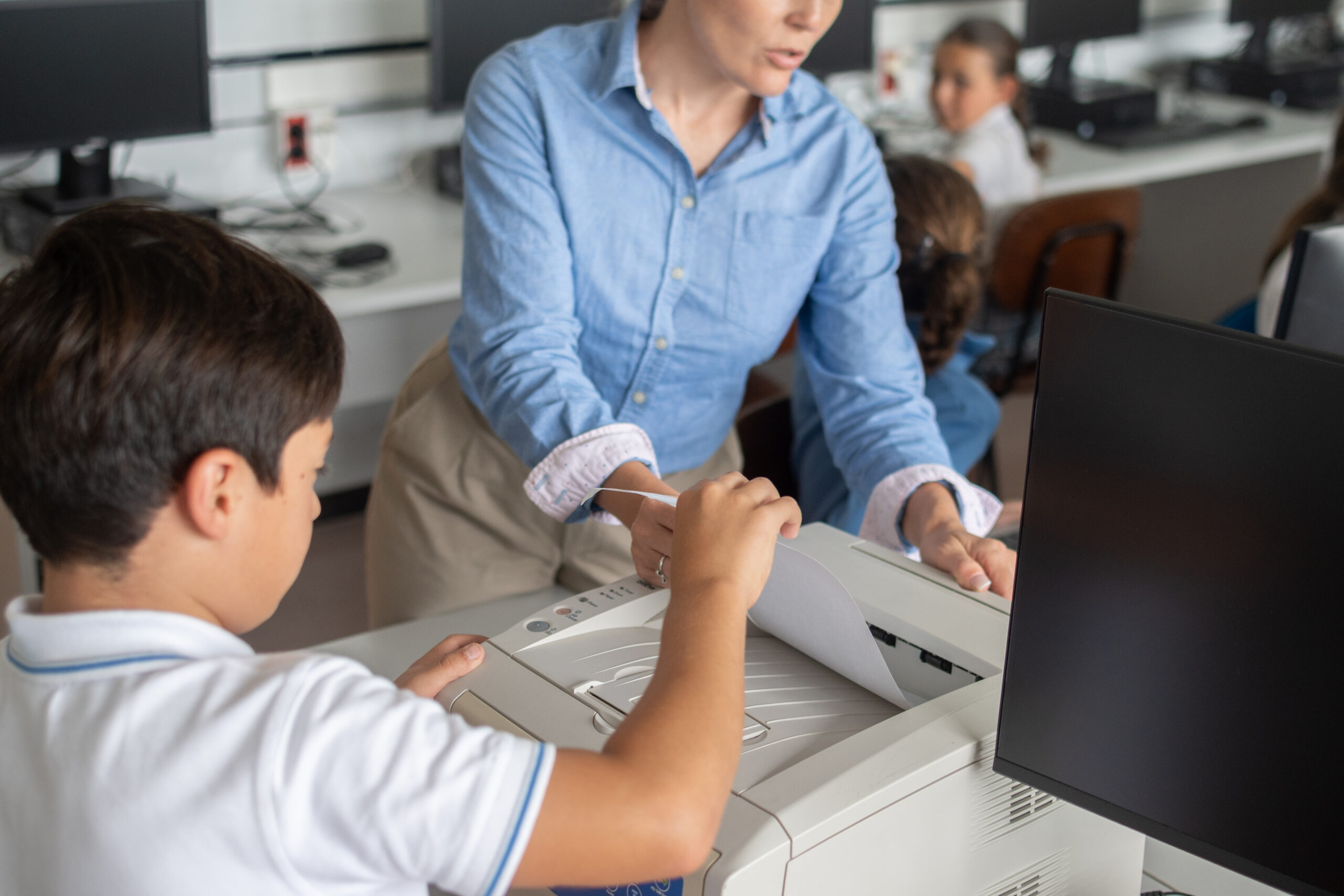
If you walked through most offices today, you would probably still find stacks of paper sitting on desks, filing cabinets packed with old documents, and employees searching through folders to find the information they need.
Paper has a sneaky way of piling up, slowing people down, and eating into space you could use for almost anything else. Paper documents can be misplaced, duplicated, damaged, or forgotten entirely. They also require employees to spend time filing, organizing, and searching for information.
But going paperless doesn’t mean eliminating every sheet of paper overnight. In fact, for many businesses, the goal is not to become completely paper-free but to reduce unnecessary paper use and create more efficient ways to manage information.
If you’re looking to build a more organized, productive workplace, here are a few practical paper management hacks that can help your office go almost paperless.
1. Start With an Honest Paper Audit
Before making changes, take a close look at how paper moves through your organization. Most offices are surprised by the answer. Spend a week tracking:
- Which documents are still printed regularly?
- What paperwork requires multiple approvals?
- Where do employees spend time filing or searching for records?
- Which departments rely most heavily on paper processes?
Once you see the patterns, you can target the biggest sources first. For example, if most of your paper comes from intake forms, switching to digital forms gives you the fastest resolution.
2. Scan First, File Later
One of the easiest ways to reduce paper accumulation is to adopt a “scan first” approach for incoming documents. Instead of immediately filing paperwork in cabinets or desk drawers, scan it into your digital system as soon as it arrives.
Modern multifunction printers (MFPs) make this process quick and easy. With features like one-touch scanning and optical character recognition (OCR), paper documents can be converted into searchable digital files in just a few minutes.
The real advantage comes later when you need to find that information. Rather than sorting through folders or filing cabinets, employees can simply search for a keyword, client name, invoice number, or document title and retrieve the file instantly. That alone saves hours each month.
3. Switch to Digital Forms
Paper forms often create unnecessary extra work. Someone fills out the form by hand, and then another employee has to manually enter that information into a system. Not only is this time-consuming, but it also increases the risk of data entry errors.
Digital forms eliminate this duplicate effort by capturing information electronically from the start. They can be used for a wide range of everyday business processes, including:
- New client onboarding
- Employee requests and approvals
- Surveys and feedback forms
- Service or support tickets
Once submitted, the information can be automatically routed to the appropriate department, stored in the correct system, or used to trigger follow-up workflows. This speeds up processing, improves accuracy, and reduces the amount of manual administrative work your team has to manage.
4. Set Smart Default Print Setting
Sometimes the simplest changes can have the biggest impact. One of the easiest ways to reduce paper consumption is to adjust your printer’s default settings.
Consider setting all devices to print double-sided and in black-and-white by default. If your print management software supports it, you can also add prompts that encourage employees to think twice before printing unnecessary documents.
These small adjustments require little effort from employees but can significantly reduce paper and toner usage over time. In many offices, printing habits improve simply because the most efficient option becomes the default option.
The best part is that this strategy does not require new equipment, extensive training, or major process changes. A few smart settings can help reduce waste and lower printing costs.
5. Create a Simple Naming System
Going paperless is not just about reducing paper. It is also about keeping digital files organized and easy to find. After all, digital clutter can be just as frustrating as a crowded filing cabinet.
When files are saved with inconsistent or vague names, employees often waste time searching for documents or create duplicate copies because they cannot find the original. A simple, standardized naming convention helps prevent confusion and keeps everyone working from the same information.
For example, you might use a format like: ClientName_DocumentType_Date
A file name such as Johnson_Invoice_2026-05.pdf immediately tells employees who the document belongs to, what it contains, and when it was created.
6. Build a Central Digital Home
When documents are stored across multiple folders, desktops, email inboxes, and shared drives, it becomes difficult for employees to know where the latest version lives. This confusion often leads people to print copies “just in case” or save duplicate files, creating even more clutter.
Instead, establish a single, centralized location for digital document storage and make it the standard across your organization. Whether it is a document management system, shared cloud platform, or secure network repository, every employee should know exactly where to save and retrieve files.
A well-organized document management workflow makes information easier to find, improves version control, and strengthens document security. More importantly, it builds confidence that the digital copy is accurate, accessible, and up to date.
7. Let AI Help Manage Information
AI tools are making document management even more efficient. Many modern platforms can automatically:
- Categorize documents
- Extract data from forms
- Summarize content
- Improve searchability
- Route files to the correct destination
Instead of manually organizing every document, employees can spend more time focusing on higher-value work. AI does not replace employees. It simply helps reduce the administrative burden that often comes with managing large volumes of information.
8. Lastly, Get Your Team On Board
Even the best plan flops if people do not buy in. The trick is making the new way easier than the old way. A few things that help:
- Explain the why. People follow changes they understand. Less searching, faster approvals, and a cleaner office are easy wins to point to.
- Start small. Roll out one change at a time instead of everything at once.
Most importantly, encourage feedback throughout the process. Your team works with documents every day and can often provide valuable insights into what is working and what could be improved.
Frequently Asked Questions
- How can a document management system help reduce paper?
A document management system stores files digitally, allowing employees to search, access, and share documents without relying on physical filing cabinets or paper copies.
- Can small businesses create a paperless office?
Yes. Small businesses can start by digitizing documents, implementing document management software, and reducing unnecessary printing through simple workflow improvements.
- How does workflow automation support a paperless office?
Workflow automation routes documents electronically, reducing manual handling, speeding up approvals, and helping businesses eliminate paper-based processes.