Most teams don’t lose time in big, dramatic ways. They lose it in small leaks: five minutes hunting for a file, ten minutes rewriting the same email, half an hour in a meeting that could have been a quick message. None of these feel like a big deal alone, but add them up across a week and a whole team, and you’re looking at hours of lost focus. The problem is not always that employees have too much work. Sometimes, the way work gets done makes everything take longer than it should. A document gets saved in the wrong folder, the same information gets entered into multiple systems, or a simple request sits in someone’s inbox because no one knows who needs to approve it. You’ll be glad to hear that some of the most effective workflow improvements are surprisingly simple and don’t require a massive overhaul. They just take a clear look at how work actually gets done and a willingness to try something better. Let’s go over a few practical workflow improvements that can cut down time spent on repetitive tasks, reduce unnecessary steps, and help get more done during the workday.
What Is Workflow Improvement?
Workflow improvement is the process of making the steps involved in completing a task simpler, faster, and more consistent. Think about what happens when your team processes an invoice, prepares a client document, approves a purchase, or handles a service request. Each task involves a series of steps, and every unnecessary handoff, repeated action, or delay can slow things down. Business process improvement focuses on identifying those roadblocks and finding better ways to get work done.
Sometimes, the solution is as simple as clarifying who is responsible for a task. Other times, it means organizing shared files, creating standardized templates, or using technology to automate repetitive work. The goal is to remove friction so teams spend less time managing the process and more time doing meaningful work. Think about it this way. If a small change saves each person on a ten-person team just 15 minutes a day, that’s 12.5 hours back every week. That’s more than a full workday of time you can put toward clients, planning, or finally getting to that project everyone keeps postponing.
1. Identify Where Your Team Is Losing Time
Before changing a process, take a closer look at how your team currently works. You might assume that a particular task takes too long because it is complicated. But when you look at the individual steps, you may discover that most of the time goes toward searching for information, waiting for someone to respond, or correcting mistakes. For example, imagine your office manager spends part of every Monday gathering information from different departments to prepare a weekly report. Each department uses a different format, so the office manager has to reorganize the information before putting everything together. The report itself may be straightforward. The problem is the inconsistent process leading up to it. Start by asking employees a few questions:
- Which tasks take longer than they should?
- What do you find yourself doing repeatedly?
- Where do you usually get stuck waiting for someone or something?
- Which tasks require you to enter the same information more than once?
You can also map out a process from beginning to end to see where delays happen. Once you identify the biggest time-wasters, prioritize the ones that happen frequently or affect multiple employees. Fixing a small problem that occurs every day may save more time than improving a larger task that only happens once a month.
2. Create a Consistent Process for Common Tasks
When employees approach the same task in different ways, work can become inconsistent and unnecessarily complicated. One person may save a document in a shared folder, another may email it to a coworker, and someone else may keep it on their desktop. Even if everyone gets the job done, the lack of consistency can create confusion when another employee needs to find the information later. Creating a standard process helps everyone understand what to do, where information belongs, and what needs to happen next.
Start with tasks your team performs regularly, such as onboarding new employees, processing invoices, preparing client proposals, or submitting purchase requests. Document the essential steps and make the instructions easy to access. You don’t need a lengthy procedure manual for every task. A short checklist or simple set of instructions may be enough. Standardization also makes training easier. New employees can follow an established process instead of relying entirely on someone else’s memory, and existing employees can spend less time answering the same questions. The key is to create enough structure to keep work consistent without adding unnecessary rules.
3. Reduce Repetitive Data Entry
Entering the same information into multiple systems wastes time. For example, an employee might receive a customer request by email, enter the details into a spreadsheet, update a customer management system, and then copy the same information into a service ticket. Each step creates more work and another opportunity for mistakes.
Look for places where your team repeatedly copies information between documents, forms, spreadsheets, or business applications. Then consider whether you can eliminate a step or connect the tools you already use. Depending on your systems, you may be able to use form integrations, automated data transfers, reusable templates, or workflow automation tools to move information where it needs to go. You can also reduce manual entry by using digital forms that collect information in a consistent format from the start. The goal is not to automate every task, but to stop employees from repeating work that has already been completed.
4. Simplify Approvals and Handoffs
A task can be ready to move forward but still sit untouched because the next person does not know it is waiting for them. This often happens with expense approvals, purchase requests, contracts, and internal projects. A document gets emailed to one person, forwarded to another, and eventually buried under newer messages. The longer a task sits in someone’s inbox, the longer the entire process takes.
To improve this workflow, make ownership and next steps clear. Every task should have a designated person responsible for moving it forward, along with a clear understanding of who needs to review or approve it. For recurring approvals, consider using a shared task management system or automated notifications that alert the next person when action is needed. You can also establish reasonable expectations for response times based on the urgency of the request. For example, if a purchase request needs approval before an order can be placed, employees should know who approves it and where to check its status. They should not have to send multiple emails to figure out whether anyone has reviewed it. Clear hand-offs reduce unnecessary follow-up, prevent tasks from falling through the cracks, and help work move forward more smoothly.
5. Automate Routine Document Workflows
Some of the most time-consuming office tasks involve moving information from one place to another. An employee scans a document, renames the file, emails it to a coworker, and then saves another copy in a shared folder. Someone else downloads a form, fills it out, and sends it to another department for processing. These tasks may be necessary, but every manual step creates more work.
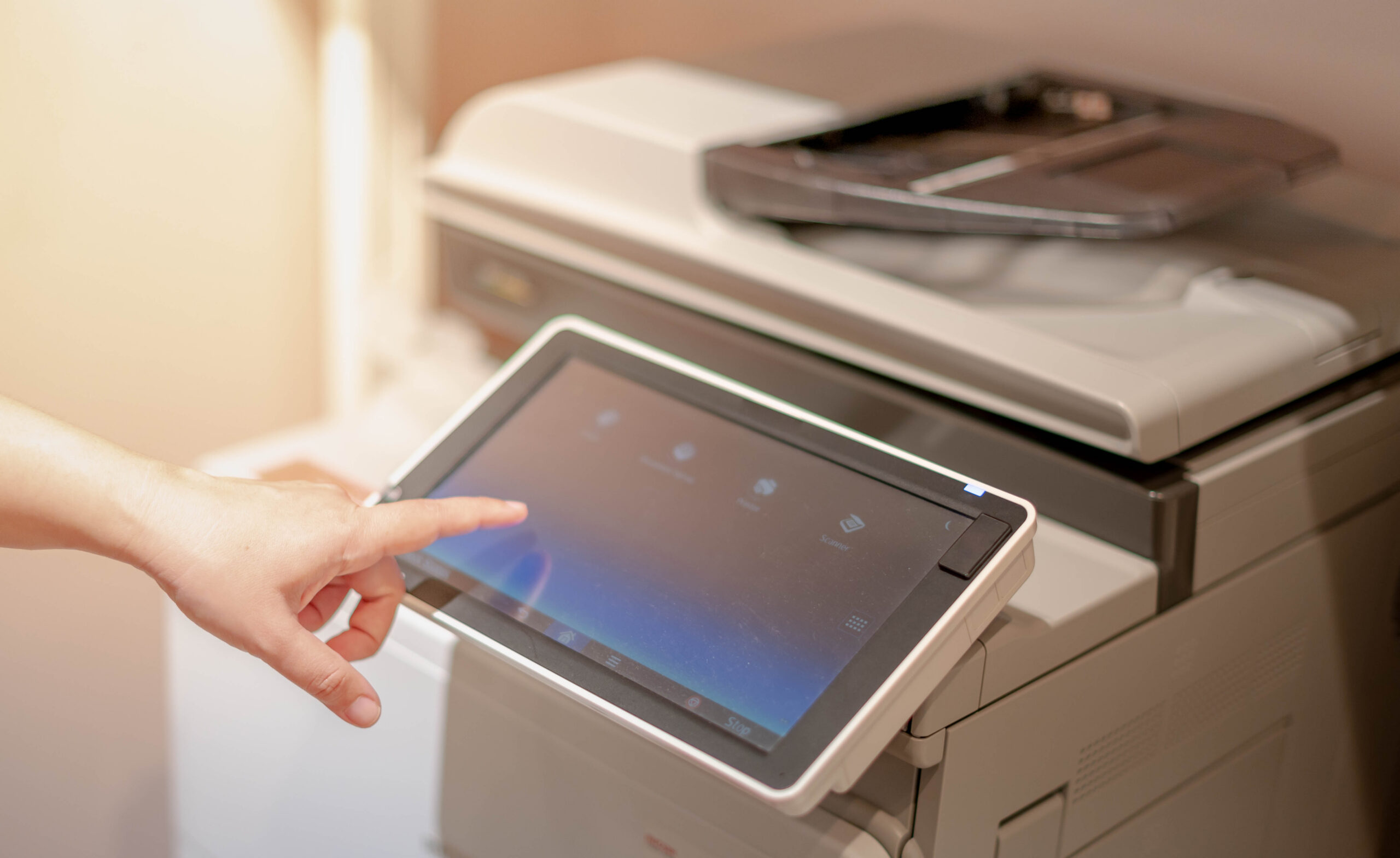
Document workflow automation can help simplify these processes by using technology to handle routine actions with less employee involvement. For example, you might be able to configure your multifunction printer to scan documents directly to a designated email address or cloud folder. Instead of scanning to a desktop and manually uploading each file, employees can send documents to the appropriate destination in fewer steps.
More advanced workflows can use OCR (optical character recognition) to convert scanned documents into searchable text. Depending on the software and configuration, information can also be routed to the right team or application for further processing. Most Sharp MFPs offer these features, but if you want a place to start, our post on time-saving copier features covers the basics. In a nutshell, consider where your employees spend time scanning, filing, distributing, or routing documents. Then look for opportunities to simplify those steps.
6. Use Templates for Work You Create Repeatedly
Does your team regularly create the same types of documents? Client proposals, meeting agendas, project updates, invoices, reports, and email responses often follow a similar structure. Starting from scratch each time wastes effort and can lead to inconsistent formatting or missing information. Templates give employees a ready-made starting point. Create approved templates for documents your team uses frequently. Include standard formatting, commonly used information, and prompts for details that change from one situation to another. For example, a client proposal template might include your company’s standard introduction, service descriptions, and contact information, leaving employees to add the client’s specific needs and pricing.
Email templates can also help with routine communications, such as responding to common questions or requesting information from customers. Just make sure templates are easy to find and simple to update. An outdated template can create more problems than it solves.
7. Review Your Tools and Eliminate Unnecessary Steps
Sometimes, a workflow becomes complicated because your team is using too many tools or relying on processes that no longer make sense. You might use one application for task management, another for file sharing, a separate spreadsheet to track progress, and email to communicate updates. Employees end up switching between systems just to understand the status of one project. Take a step back and review the tools your team uses for common tasks. Ask whether each tool serves a clear purpose, whether information needs to be entered in multiple places, and whether your existing technology offers features you are not using. You may find that a shared dashboard, a better-integrated application, or a more consistent way of tracking requests can eliminate several unnecessary steps.
This does not mean you need to replace every tool that feels inconvenient. New software can introduce additional costs, training requirements, and complexity. Start by making better use of what you already have. If a process still creates significant delays, then explore whether another solution would provide a meaningful improvement. Effective office workflow optimization is about making work easier, not adding technology for the sake of it.
How to Know If Your Workflow Improvements Are Working
Once you make changes, take time to see whether they are actually helping. You do not need an elaborate tracking system. Start with a few practical measurements that relate directly to the problem you are trying to solve. For example, you could track:
- Time to complete a task: Does processing an invoice or preparing a report take less time?
- Time spent searching for files: Can employees find the documents they need without asking coworkers for help?
- Approval turnaround: Are requests moving forward more quickly?
- Error rates: Are employees making fewer mistakes or correcting less duplicated information?
- Employee feedback: Do team members feel that the process is easier to follow?
Establish a baseline before making a change, then compare results afterward. Even a simple estimate of how much time employees spend on a recurring task can help you see whether the improvement is worthwhile.
Start small, stay consistent, and build from there. And if you’d like support finding the right improvements for your business, AD Solutions is here to help. We help businesses explore workplace technology that supports more efficient document handling, communication, and day-to-day operations. Contact us to get started today.
Frequently Asked Questions
- How can businesses reduce repetitive tasks at work?
Review tasks employees perform repeatedly and look for opportunities to eliminate duplicate data entry, reuse templates, integrate existing applications, or automate routine actions. Even small changes, such as creating a standard process for submitting requests, can reduce unnecessary work across a team.
- What is document workflow automation?
Document workflow automation uses technology to simplify how documents are captured, processed, stored, and shared. For example, an office copier can send scanned documents directly to a shared folder or email destination. More advanced systems may recognize text, route documents to specific departments, or connect document information with business applications.
- What are the best time management tips for office teams?
Some of the most effective tips include batching email at set times, cutting unnecessary meetings, using shared templates, and keeping a single task board. Protecting blocks of focus time also helps teams get meaningful work done without constant interruptions.