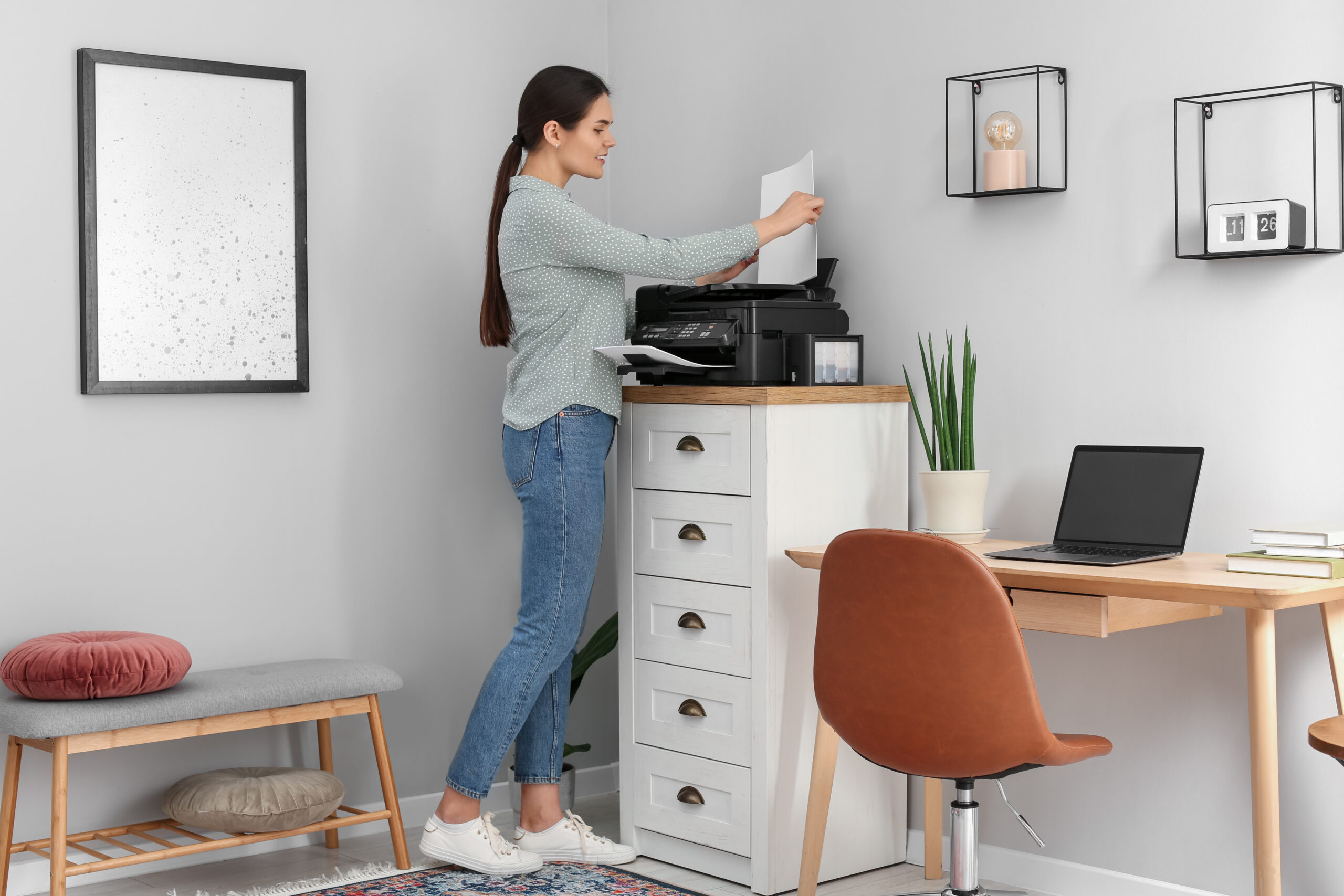
When people think about HIPAA compliance, printers are rarely the first thing that comes to mind. Most healthcare organizations focus on EHR systems, secure networks, and employee training. Yet one overlooked area can quietly create serious risk: the office printer.
In healthcare offices, printers handle everything from patient intake forms to lab results and billing documents. If those documents are left unattended, printed to the wrong device, or stored insecurely, your organization could be exposed to compliance violations without realizing it. Here’s how the right printer helps protect patient data and support compliance efforts.
The Printer is an Endpoint, Not Just a Toaster
Modern Multifunction Printers (MFPs) are more than just simple printing devices; they are sophisticated computers. They have hard drives, operating systems, and network connections. Think of it this way: If you wouldn’t leave a laptop unlocked in the waiting room, you shouldn’t leave your printer unsecured either.
HIPAA requires covered entities to protect patient information in all forms—electronic, written, and oral. Your printer touches at least two of those three categories daily. If a bad actor wants access to your network, an unsecured printer is often the easiest back door they can find.
Common printer-related risks include:
- Patient records sitting unattended in output trays
- Documents sent to the wrong printer or department
- Stored data on copier hard drives that is never erased
- Unauthorized access to devices in shared spaces
For busy healthcare environments, these issues can happen quickly and unintentionally. That’s why it’s important to treat printers as part of your security strategy, not just office equipment.
1. Implement “Pull Printing” or User Authentication
This is the single most effective way to stop unauthorized eyes from seeing sensitive documents. Without user authentication, anyone can walk by the printer and read a patient’s diagnosis off a paper sitting in the tray.
With “pull printing,” when a user sends a job to the printer, the machine doesn’t print it immediately. Instead, it stores the job in a secure queue until the user authenticates at the device—usually by entering a PIN or swiping an ID badge—to “pull” the job. This ensures patient documents are printed only when the right person is physically present.
2. Secure the Hard Drive
Every document you copy, scan, or print is temporarily stored on the printer’s internal hard drive. If you don’t manage this data, it stays there.
Check your device settings for data overwriting features. This function writes over the data immediately after a job is complete, making it unrecoverable. It effectively shreds the digital file once the paper copy is produced. For example, Sharp devices use encrypted hard drives and include data overwrite features that automatically erase stored information. This helps ensure patient data does not remain on the device after jobs are completed or when equipment is replaced. If your current machines don’t support this, it might be time for an upgrade.
3. Change Default Passwords
While this may sound basic, you would be surprised how many printers still use the default factory-set admin password. These passwords are public knowledge and can be found with a simple Google search.
If someone gains admin access, they can redirect print jobs, access stored documents, or use the device as a doorway into your network. Updating default passwords is a quick step that closes a major security gap and helps protect sensitive information.
4. Close Unused Ports and Protocols
Your printer likely has various network ports open by default to support different connection types (like FTP, Telnet, or HTTP). If you aren’t using them, close them. Every open port is a potential entry point for a cyberattack. Ask your IT provider to disable any service or port that isn’t essential for your daily operations.
5. Don’t Forget About Physical Placement
Sometimes the best security is simply a locked door. Take a look at where your printers are located. Are they in high-traffic areas where patients or visitors pass by? Can a visitor easily see the output tray or the control panel?
Ideally, printers handling PHI should be in restricted areas accessible only to authorized staff. If that isn’t possible, orient the device so the screen and trays face away from public view.
How Sharp MFPs Simplify Compliance
At AD Solutions, we partner with manufacturers who understand the specific pressures of the healthcare industry. Sharp stands out because they don’t treat security as an add-on; they build it into the DNA of their machines.
Here are two specific ways Sharp MFPs help:
1. The “End-of-Lease” Feature
One of the scariest moments for a healthcare manager is returning a leased copier. You worry about what data might still be lurking on that hard drive. Sharp solves this with their standard “End-of-Lease” feature. This function completely wipes all data from the machine’s hard drive, including user data, job status, and address books. It creates a report confirming the wipe was successful, giving you the documentation you need for your HIPAA records. You can return the machine knowing absolutely no patient data is going with it.
2. Real-Time BIOS Integrity Checks
Hackers are getting smarter, targeting the BIOS (Basic Input/Output System) of devices—the fundamental software that boots up the machine. If they compromise this, they own the device before the operating system even loads. Sharp MFPs include a BIOS integrity check feature. When the machine starts up, it checks the BIOS against a known, safe version. If it detects any tampering or unauthorized changes, it stops the boot process immediately and alerts your admin. It essentially inoculates your printer against deep-level attacks, ensuring the machine is safe to use every single morning.
Building a Culture of Security
Technology is only half the battle. The other half is your team. You can have the most secure MFP on the market, but if a staff member writes their password on a sticky note and puts it on the screen, you still have a breach risk.
Make printer security part of your regular training. Remind your team why they need to swipe their badges. Explain why they shouldn’t leave documents sitting in the tray. When your staff understands the “why,” they are much more likely to follow the “how.”
Moving Forward with Confidence
HIPAA compliance can feel like a heavy burden, but it doesn’t have to be overwhelming. Start small. Walk around your office today. Look at your printers. Are there papers in the tray? Is the screen facing the waiting room? Those are quick fixes. For the deeper technical solutions—like hard drive encryption and user authentication—you have partners ready to help.
At AD Solutions, we help healthcare organizations choose and configure office technology that supports compliance without slowing teams down. From secure MFPs to workflow automation, we focus on solutions that make it easier to protect patient data and stay focused on care.
If you’re unsure whether your current printers meet HIPAA standards, we’re here to help you take a closer look. Contact us today for a free consultation.